Professional show control

A presentationserver forlive events

The presentation is the heartbeat of the show. Show Distro treats the slides like a timeline for cues, presenter layouts, and output changes.

  • Keynote
  • PowerPoint
  • PDF
  • Named output presets

In development · private rehearsal previews by arrangement

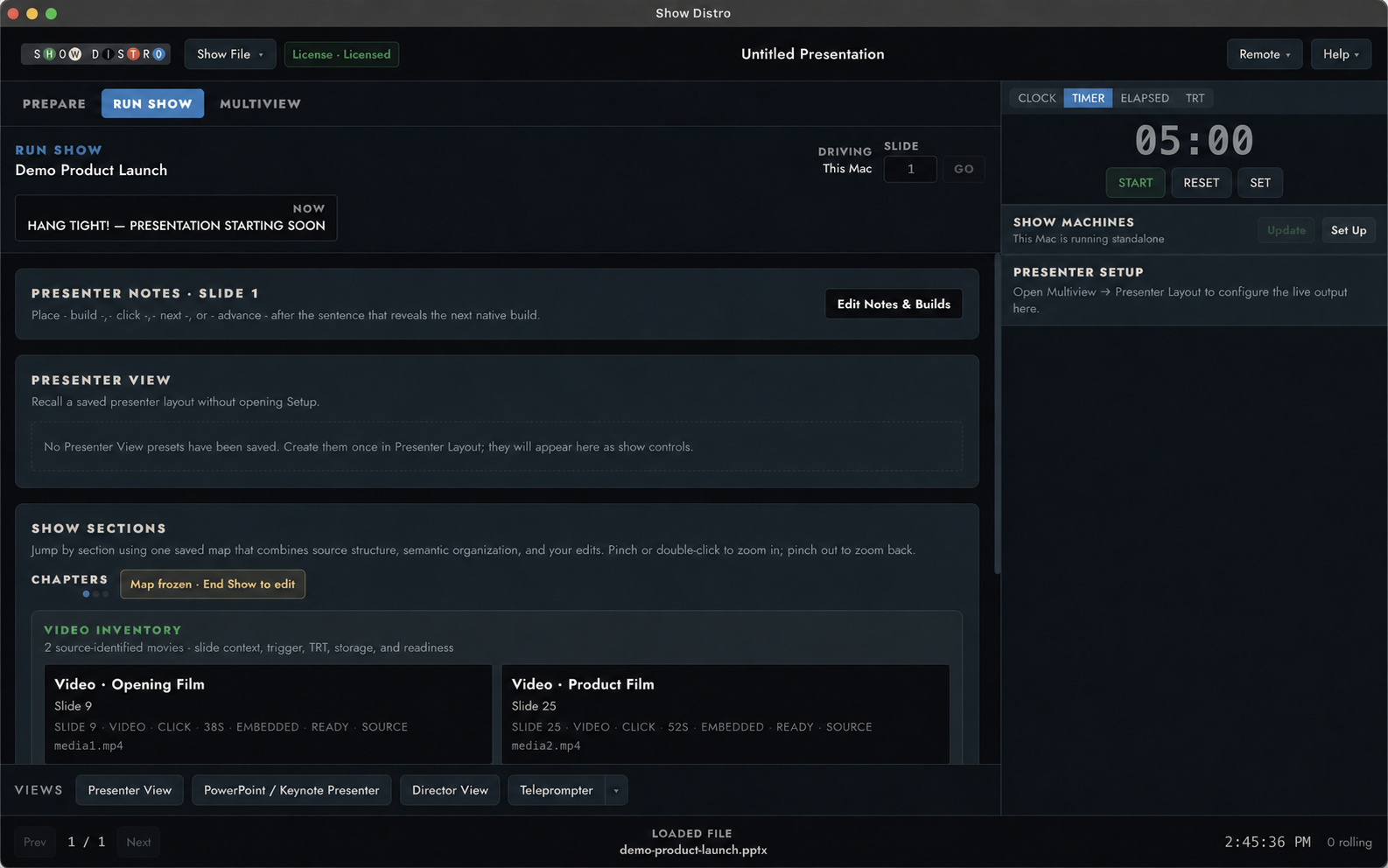
The actual Show Distro Run Show pane with a generic demo deck, presenter notes, show sections, video inventory, timer, and show machines
ACTUAL RUN SHOW CONTROL PANEDECK · NOTES · SECTIONS · MEDIA · TIMER
THE WORKFLOW From the client’s deck to a prepared show.
  1. 01Open the client deckKeynote, PowerPoint, or PDF
  2. 02Add the production workNotes, media, cues, and timing
  3. 03Choose your rigThree Macs or Local Main
  4. 04Run the prepared showQueue, clock, views, and outputs
Deck revisions

Replace the deck without rebuilding the show.

Show Distro compares a revised Keynote or PowerPoint file with the prepared version. Cues and sequenced actions carry forward when their slide or section addresses still resolve decisively. Changed or ambiguous addresses wait for operator review before the revision is Show Ready.

  1. 01
    ADD

    Use the native deck

    Bring in Keynote, PowerPoint, or PDF without converting it into a second presentation format.

    KEY / PPT / PDF
  2. 02
    PROGRAM

    Add what production needs

    Attach presenter layouts, scripts, notes, timers, media, room cues, and output routes.

    VIEWS / CUES / MEDIA
  3. 03
    PREPARE

    Choose the show layout

    Prepare separate Control, Main, and Backup Macs for the intended rig. Control + Local Main is an option with a separate Program display.

    LOCAL / DISTRIBUTED
  4. 04
    RUN

    Operate from one workspace

    Keep the queue, timing, presenter views, output presets, and machine state together.

    CONTROL
  5. 05
    REPLACE

    Review the revised deck

    See what still matches, resolve uncertain addresses, then distribute the approved revision to the machines in your rig.

    REVISION
How the room connects

Keep everyone on the same page.

The intended rig uses three Macs: Control, Main, and Backup. Smaller setups can omit Backup or combine Control and Main; a combined Mac still needs a separate physical Program display. Presenter and Director views are configured for the room.

See the complete operator workflow →
01
DECKS + REVISIONS

Use Keynote, PowerPoint, and PDF files directly.

Add native decks alongside scripts and notes. When a new version arrives, compare it with the rehearsed deck and review anything that no longer matches.

  • Structural comparison
  • Slide + section addressing
  • Local processing
02
CUES + MEDIA

Add media, cues, timers, and output looks.

Attach external media, countdowns, presenter messages, show sections, and audio, lighting, HTTP, TCP, UDP, or OSC cues. Save named Output Presets for Program, Presenter, Teleprompter, and configured display or NDI outputs; recall a look manually or on a confirmed slide.

  • Media + cue stacks
  • Timers + TRT
  • Named Output Presets
03
PRESENTER + DIRECTOR

Give the presenter and director their own views.

Build presenter confidence layouts and an independent teleprompter. Director can monitor Program, Presenter, Light Table, sections, timing, and messages.

  • Saved presenter presets
  • Independent teleprompter
  • Director multiview
04
OPERATOR CONTROL

Run the show from Control, Stream Deck, or Companion.

Use the Show Distro Control app or the direct Stream Deck plugin. A local Companion beta module and optional authenticated OSC, UDP, and TCP inputs are also available.

  • Stream Deck direct
  • Companion beta module
  • Optional network input
Run Show

Control the presentation from one pane.

Run Show puts the active deck, slide notes, section map, video cues, presenter view, timer, and presentation computers in front of the operator.

The Show Distro Run Show control pane running a generic demo presentation on macOS
Show Distro Run Show · representative interface
  1. 01
    Current deck and slide

    See what is live, what comes next, and which presentation computer is driving.

  2. 02
    Notes, sections, and media

    Keep presenter notes, section jumps, and attached video cues within reach.

  3. 03
    Timer, machines, and output looks

    Run the clock, check the configured machines, and recall a saved output look without leaving the control pane.

CONTROL, MAIN + BACKUP / PRIVATE LANLOCAL NETWORK
OPERATORCONTROLRUNS THE SHOW
PRESENTATION COMPUTERMAINREADY
BACKUP COMPUTERBACKUPREADY
DECKCUES + VIEWSOUTPUTSSAME REVIEWED SHOW
Local show network

Built for show control and peace of mind.

Control runs the show while separate Main and Backup Macs receive the reviewed setup over a private local network. Smaller rigs can omit Backup or use Control + Local Main with a distinct physical Program display. Internet access is not required to run a prepared show; enrollment, updates, Box, and other optional connected services remain separate.

  1. 01
    Three Macs by designUse separate Control, Main, and Backup Macs, or combine Control and Main with a distinct Program display.
  2. 02
    Show Ready includes reviewRequired content, cues, and sequenced actions must be current and resolved; a matching file alone does not clear a review warning.
  3. 03
    Rehearse the actual equipmentTest the Macs, displays, adapters, presentation apps, network, and fallback plan before the event.
Review the technical setup
Private rehearsal preview · macOS

Help qualify Show Distro on a real rig.

We are arranging supervised rehearsals with live-event professionals while native outputs, presentation hosts, and multi-machine recovery complete qualification. Tell us about the Macs, displays, presentation apps, network, and backup plan you use.

  • Separate Control, Main, and Backup Macs or a smaller Local Main configuration
  • Mac and display compatibility reviewed for each rehearsal
  • Direct support and in-app feedback
  • Local deck, script, and presenter-note processing
BY ARRANGEMENT Preview rehearsal inquiries welcome Request a rehearsal preview
Straight answers

What operators need to know.

Can I prepare a show on one Mac?

Yes, as an alternative to the intended three-Mac rig. Control + Local Main keeps the operator and native presentation on one Mac. Start Show still needs a separate physical Program display; a single-display, windowed rehearsal path is still being developed.

Do Output Presets choose the physical displays?

No. Setup Layout owns the display routes. Output Presets save named Program, Presenter, Teleprompter, and configured additional-output states. The list starts empty; a button appears only after you save a preset.

Does Show Distro replace PowerPoint or Keynote?

No. PowerPoint and Keynote continue to run the native presentation while Show Distro adds the production layer around it. PDFs can also play directly.

What happens when the client sends a revised deck?

Show Distro compares the new file with the current presentation, preserves cues and sequenced actions that still resolve decisively, and flags changed or ambiguous material for operator review before promotion and redistribution.

Does it need internet at showtime?

No. Once the show is prepared, installed-license verification and show operation work locally. Box, enrollment, updates, web content, and other connected services are separate from the critical showtime authority path.

Is Main and Backup automatic failover?

Show Distro coordinates and verifies a Main and Backup show group, with guarded recovery behavior. It is not a substitute for rehearsing the exact rig, network, signal path, and fallback plan.

Which Macs are supported?

We review the exact Mac model, macOS version, display path, adapter, and presentation-app version for each private rehearsal. Apple silicon is the current preview target; Intel and production rigs need separate qualification.